Perform the following steps:
-
Hold down the
Ctrl&Shiftkeys and launch AMBER by double-clicking its icon on the desktop (see Fig. 1).
-
Once AMBER’s splash screen (see Fig. 2) is visible, you can release the
Ctrl&Shiftkeys and proceed to enter option3(Reset All Data Sources).
Note - If it seems that AMBER isn’t responding to the keyboard, ensure the splash screen is receiving keyboard input by clicking it.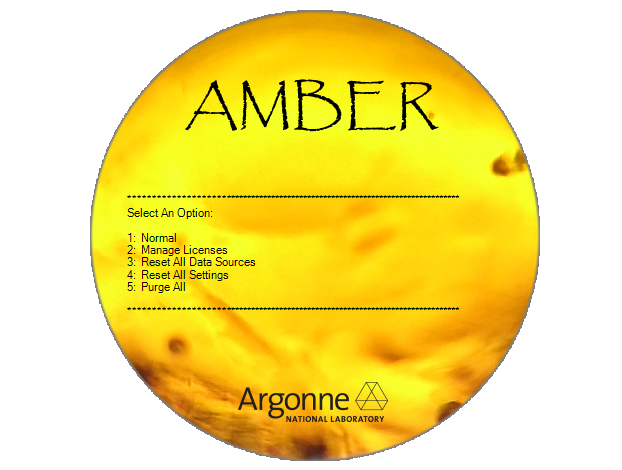
-
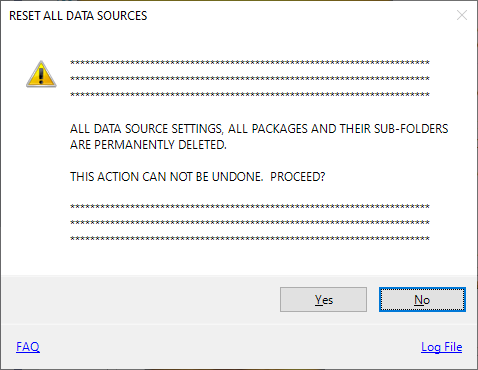
Click the ‘Yes’ button in the Reset All Data Sources screen (see Fig. 3).