Note - This applies to AMBER 2024 and later releases.
Perform the following steps:
-
Hold down the
Ctrl&Shiftkeys and launch AMBER by double-clicking its icon on the desktop (see Fig. 1).
-
Once AMBER’s splash screen (see Fig. 2) is visible, you can release the
Ctrl&Shiftkeys and proceed to enter option6(Update).
Note - If it seems that AMBER isn’t responding to the keyboard, ensure the splash screen is receiving keyboard input by clicking it.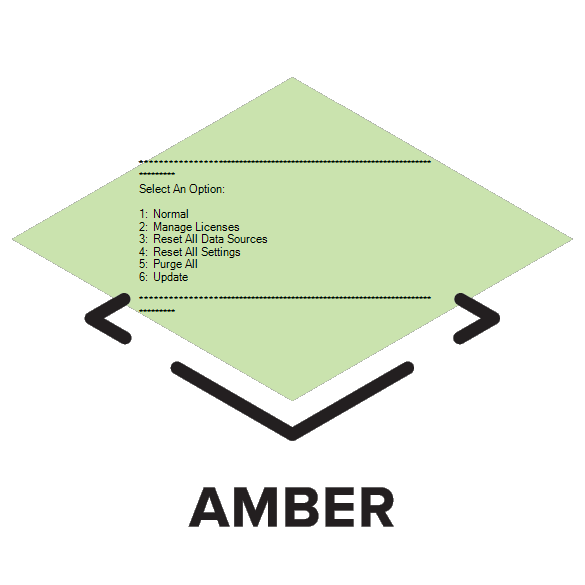
-
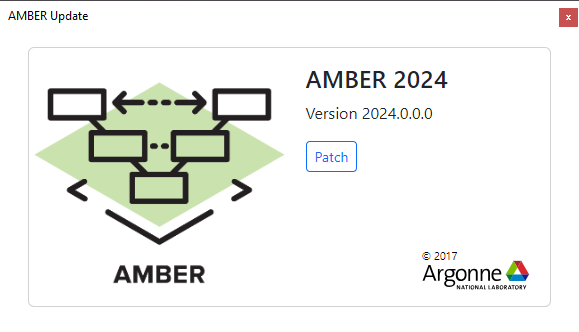
In the AMBER Update screen (see Fig. 3), click the ‘Patch’ button.
-
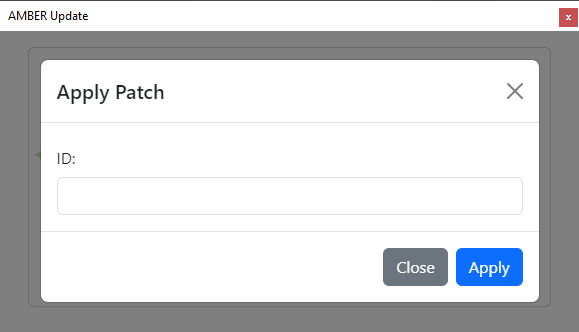
Enter the ID of the patch in the Apply Patch dialog (see Fig. 4) and then click the ‘Apply’ button.
-
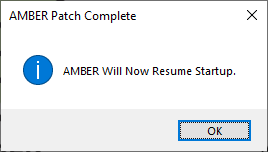
Click the ‘OK’ button on the AMBER Patch Complete dialog (see Fig. 5).